Getting Started
ChatticaAI is available on both iOS and Android:
- iOS: Download from the App Store
- Android: Download from Google Play
The app is free to download and use with core features. No account creation is required — your data stays on your device from the start.
When you first open ChatticaAI, you'll be greeted with a clean, ready-to-use interface. Here's what to do first:
- Choose your theme: Tap the theme button in the top navigation to switch between Dark, Light, or Sepia mode.
- Add an API key: Go to Settings and add at least one API key from a supported provider (see the API Keys section below).
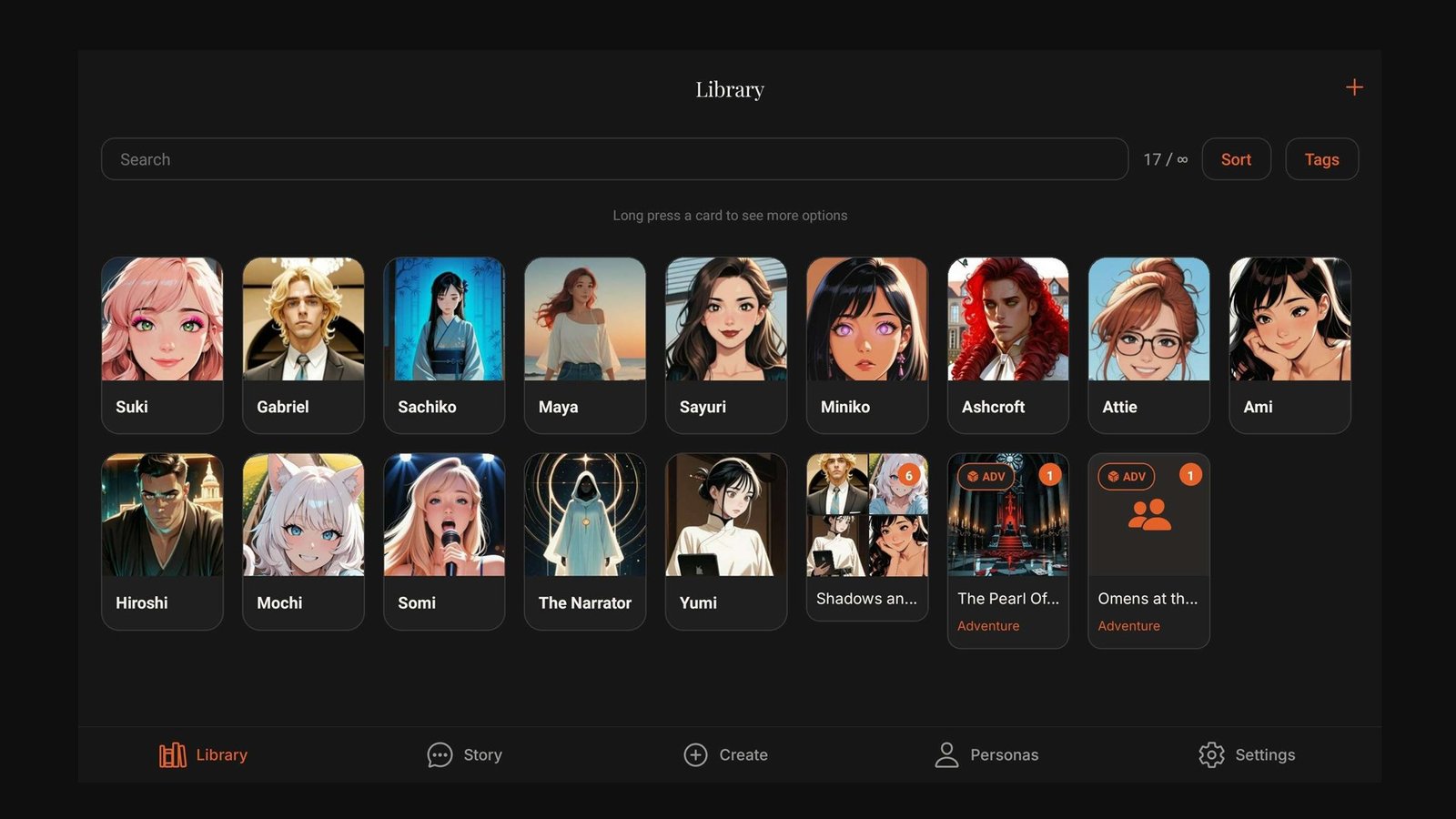
- Create or import a character: Head to the Character Library to create a new character or import an existing character card.
- Start chatting: Select a character and begin your first conversation in Story Mode or Chat Mode.
That's it — no accounts, no sign-ups, no cloud sync. Everything runs locally on your device.
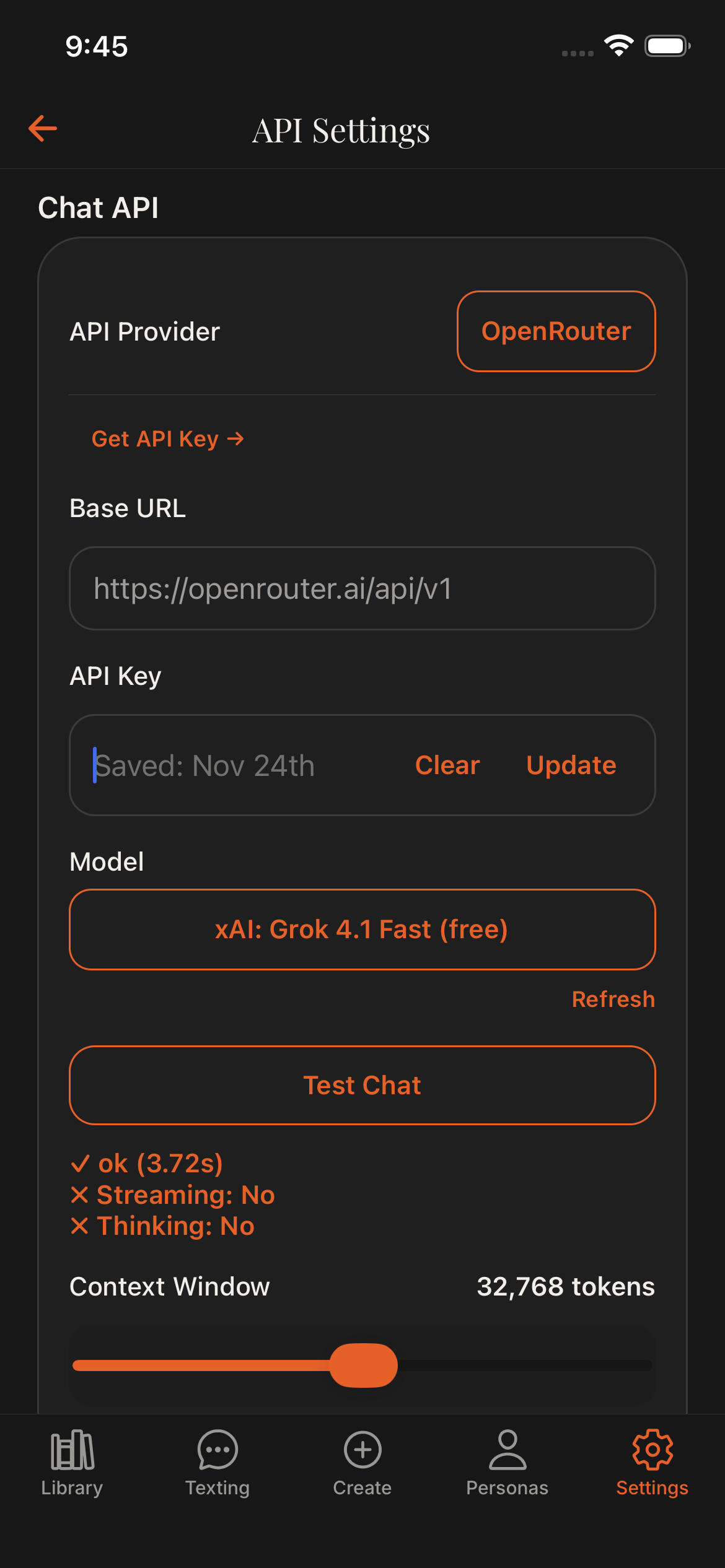
ChatticaAI uses a Bring Your Own Key (BYOK) model, meaning you provide your own API key from an AI provider. This gives you full control over costs and model selection.
The quickest way to get started:
- Visit NanoGPT (our recommended provider) or OpenRouter.
- Create an account and generate an API key.
- In ChatticaAI, go to Settings and tap on the API provider you signed up with.
- Paste your API key and save.
Your API key is stored securely in your device's encrypted Keychain (iOS) or Keystore (Android) and never leaves your device.
To create a character from scratch:
- Open the Character Library from the main screen.
- Tap the + button to create a new character.
- Fill in the character details: name, description, personality, and greeting message.
- Optionally add an avatar image.
- Save your character and start chatting!
You can also import existing character cards — see the Character Management section for details.
Once you have an API key configured and at least one character created:
- Select a character from your Character Library.
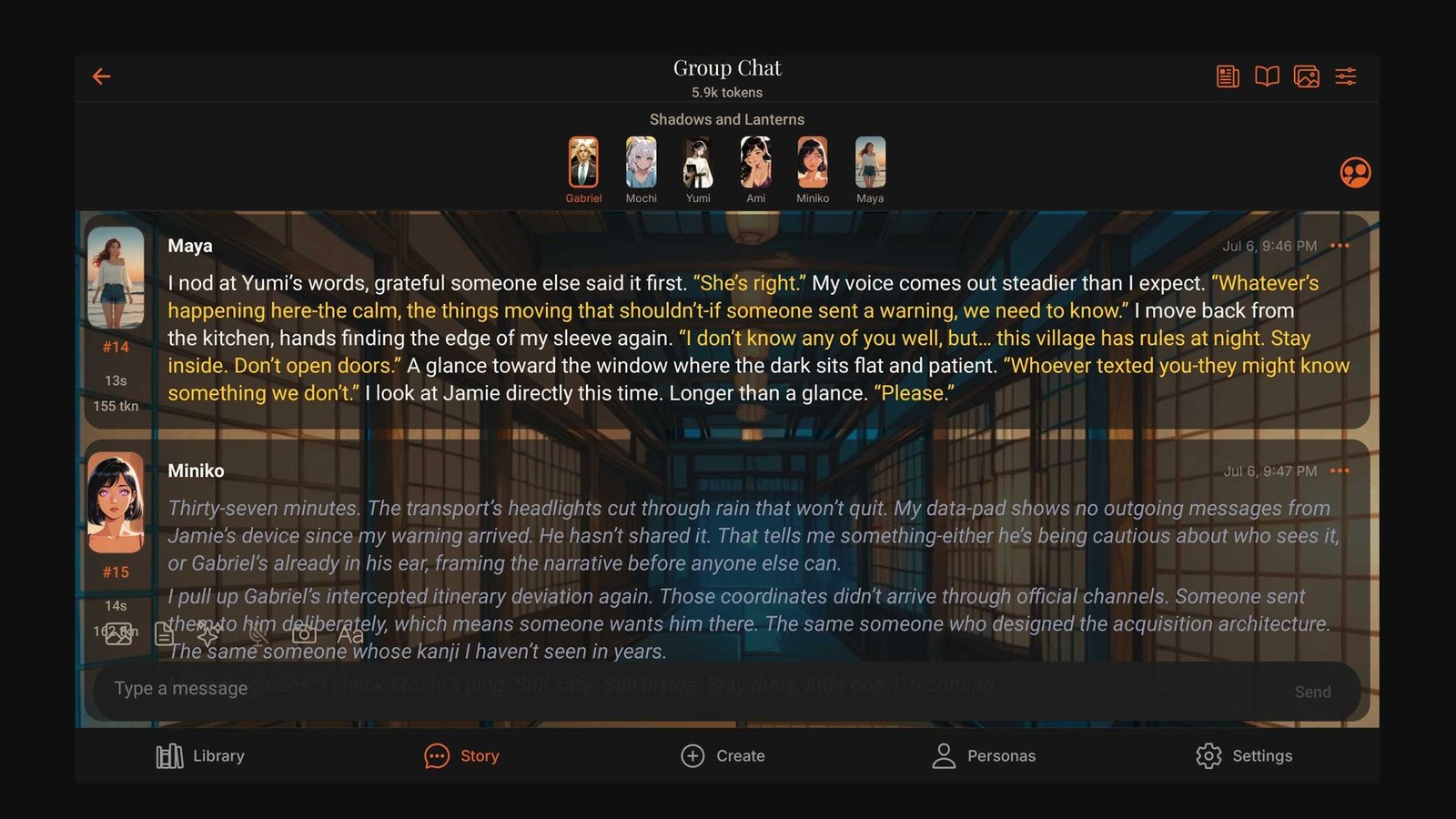
- Choose your preferred mode: Story Mode (narrative format) or Chat Mode (messaging format).
- The character will greet you with their opening message.
- Type your response and the AI will reply in character.
You can switch between Story Mode and Chat Mode at any time during a conversation.
API Keys & Configuration
API keys are like passwords that let ChatticaAI communicate with AI services on your behalf. Instead of routing your conversations through our servers, you connect directly to the AI provider of your choice.
Why Bring Your Own Key (BYOK)?
- Privacy: Your conversations go directly from your device to the AI provider — we never see them.
- Control: You choose which AI models to use and how much to spend.
- No restrictions: Access hundreds of models without us limiting your options.
- Transparency: You see exactly what you're paying for through your provider's dashboard.
We recommend NanoGPT as it supports both text and image generation through a single API, making setup simple.
- Visit NanoGPT and create an account.
- Navigate to your API settings and generate a new API key.
- Copy the key.
- In ChatticaAI, go to Settings > API Configuration.
- Select the NanoGPT/OpenAI-compatible option.
- Paste your API key and save.
OpenRouter gives you access to hundreds of AI models from different providers through a single API key.
- Visit openrouter.ai and create an account.
- Go to Keys in your dashboard and create a new API key.
- Add credits to your account (pay-as-you-go).
- In ChatticaAI, go to Settings > API Configuration.
- Select OpenRouter and paste your API key.
OpenRouter typically costs $0.001–$0.03 per 1K tokens, with most conversations costing just a few cents.
To use OpenAI models (GPT-4, etc.) directly:
- Visit platform.openai.com and sign in or create an account.
- Navigate to API Keys and create a new secret key.
- Add billing credits to your account.
- In ChatticaAI, go to Settings > API Configuration.
- Select OpenAI and paste your API key.
To use Claude models directly from Anthropic:
- Visit console.anthropic.com and create an account.
- Navigate to API Keys and generate a new key.
- Add billing credits.
- In ChatticaAI, go to Settings > API Configuration.
- Select Anthropic and paste your API key.
LM Studio lets you run AI models locally on your computer for completely free, offline conversations.
- Download LM Studio on your computer (Windows, Mac, or Linux).
- Download a model from within LM Studio (e.g., Llama, Mistral).
- Start the local server in LM Studio (it will show you the server address, usually
http://localhost:1234). - In ChatticaAI, go to Settings > API Configuration.
- Select LM Studio and enter your local server address.
Note: Your phone and computer must be on the same Wi-Fi network for local model access.
Your API keys are handled with care:
- Encrypted storage: Keys are stored in your device's secure Keychain (iOS) or Keystore (Android).
- Never transmitted to us: Your keys go directly from your device to the AI provider.
- No cloud backup: Keys are stored locally only and are not included in cloud backups.
Best practices:
- Use separate API keys for ChatticaAI (don't reuse keys from other apps).
- Set spending limits on your API provider's dashboard.
- Rotate your keys periodically for added security.
You can configure multiple API providers and switch between them:
- Go to Settings > API Configuration.
- Add API keys for each provider you want to use.
- Select your active provider from the list.
Your saved keys remain stored securely even when not actively selected, so you can switch providers without re-entering keys.
Character Management
To create a new character:
- Open the Character Library.
- Tap the + button.
- Fill in the character fields:
- Name: The character's display name.
- Description: Physical appearance, background, and key traits.
- Personality: How the character behaves, speaks, and reacts.
- Greeting: The opening message when starting a new conversation.
- Avatar: An optional profile image for the character.
The more detail you provide in the description and personality fields, the more consistent and engaging the AI's responses will be.
ChatticaAI supports importing character cards in popular formats used by the AI character community:
- PNG cards: Image files with embedded character metadata.
- JSON cards: Text-based character data files.
To import a character:
- Open the Character Library.
- Tap the Import button.
- Select your PNG or JSON file from your device.
- ChatticaAI will automatically extract the character information.
- Review the imported details and save.
The app is compatible with Ali:Chat format and other popular character card standards.
To edit an existing character:
- Open the Character Library.
- Tap on the character you want to edit.
- Select Edit to modify any field (name, description, personality, greeting, avatar).
- Save your changes.
Changes take effect immediately in new conversations. Existing conversation history is preserved.
The Character Library displays all your characters in a grid view with avatars and names for easy browsing.
- Free tier: Manage up to 2 characters.
- Plus/Premium: Unlimited characters.
Characters are stored locally on your device and can be accessed instantly without any loading or sync delays.
With Plus or Premium, you can export your characters:
- Open the Character Library.
- Select the character you want to export.
- Tap Export.
- Choose your export format and share or save the file.
Exported characters can be shared with others or used as backups.
Chat Modes
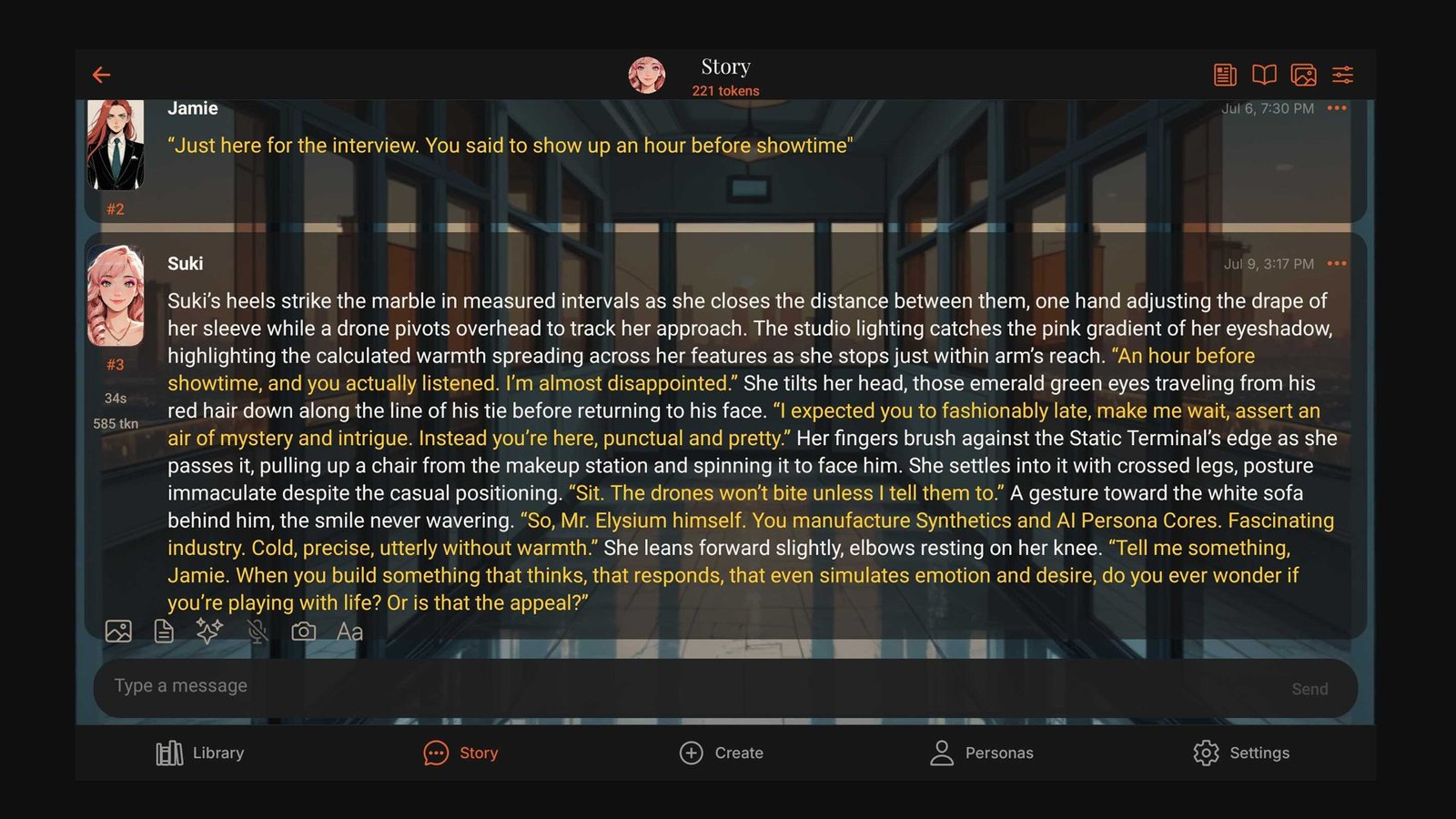
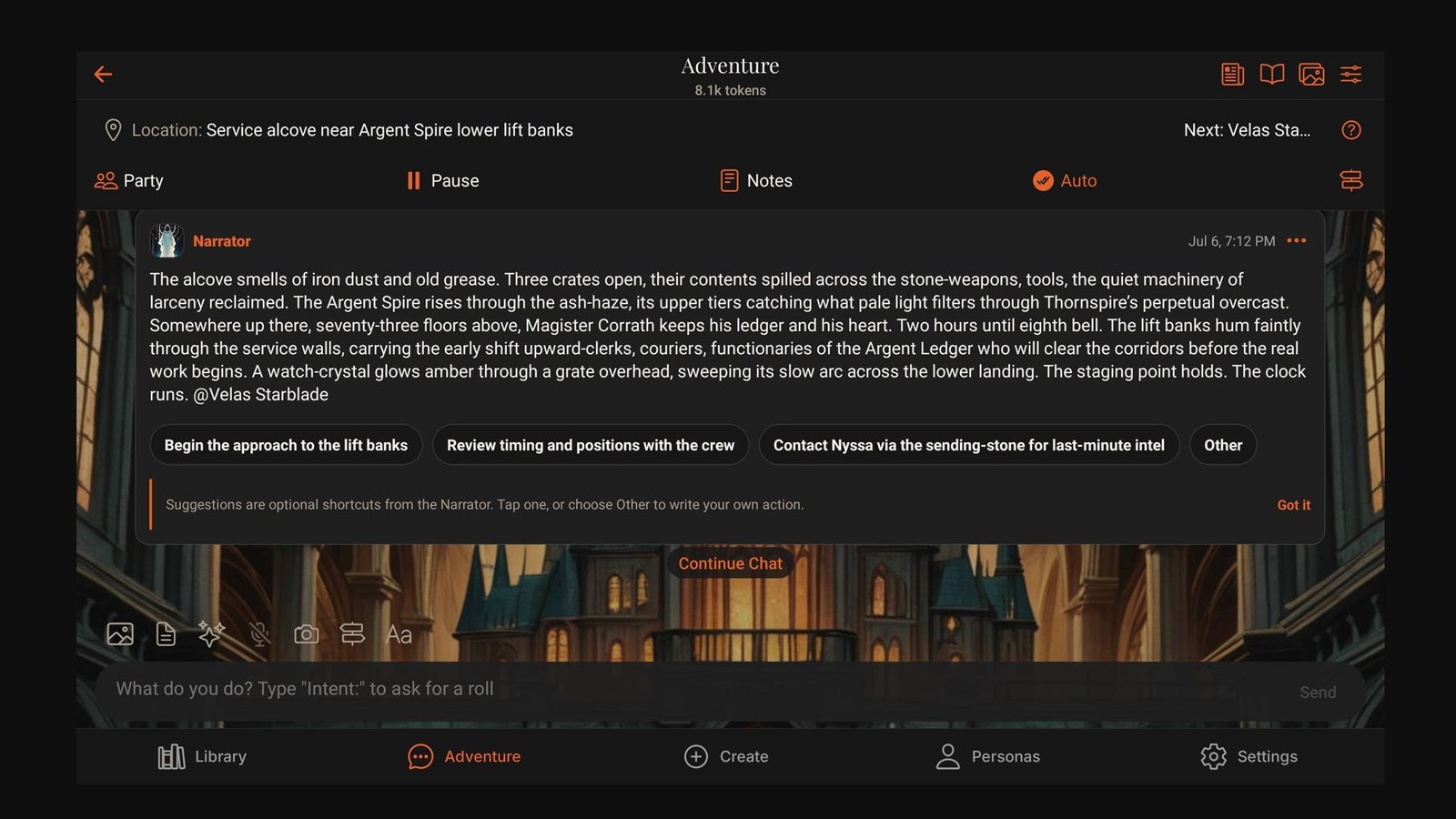
Story Mode presents conversations in a narrative, prose-like format. It's ideal for:
- Immersive storytelling and creative writing
- Detailed scene descriptions and world-building
- Rich, descriptive character interactions
- Longer, more elaborate AI responses
In Story Mode, the AI tends to write with more detail, including actions, descriptions, and inner thoughts, creating a more narrative experience.
Chat Mode uses a traditional messaging interface, similar to texting. It's great for:
- Quick back-and-forth conversations
- Casual interactions with characters
- Shorter, more concise responses
- A familiar messaging-app experience
Chat Mode keeps responses focused and conversational, making it feel like you're messaging with the character.
You can switch between Story Mode and Chat Mode at any time during a conversation. Your chat history is preserved when switching — the mode change only affects how new messages are formatted and displayed.
To switch modes, use the mode toggle in the chat interface.
Get the most out of your conversations with these tips:
- Be descriptive: The more context you provide in your messages, the better the AI can respond in character.
- Use detailed character descriptions: Well-written personality and description fields lead to more consistent responses.
- Try different models: Some AI models are better at creative writing, others at conversation. Experiment to find your favorite.
- Adjust message length: Longer messages from you tend to produce longer, more detailed responses from the AI.
- Use Story Mode for creative content: Story Mode naturally encourages more detailed and immersive AI responses.
AI Image Generation Premium
AI image generation is available with a Premium subscription. Once subscribed:
- Go to Settings > Image Generation.
- Configure your image generation API (Stable Diffusion or compatible service).
- Enable image generation in your settings.
Once enabled, you can generate character avatars and images directly within the app.
To use Stable Diffusion for image generation:
- Sign up for a Stable Diffusion API service or run a local Stable Diffusion instance.
- Obtain your API endpoint URL and key.
- In ChatticaAI, go to Settings > Image Generation.
- Enter your API endpoint and key.
- Test the connection to ensure it works.
If you're using NanoGPT, image generation is built into the same API — no separate setup needed.
Create AI-generated avatars for your characters:
- Open a character's profile or the character editor.
- Tap the Generate Avatar option.
- The app will use the character's description to create a matching avatar.
- Review the generated image and apply it if you're happy with the result.
You can regenerate avatars as many times as you like to get the perfect look.
ChatticaAI supports custom image generation endpoints, allowing you to connect to any Stable Diffusion-compatible API:
- Local Stable Diffusion installations (via AUTOMATIC1111 or similar)
- Cloud-hosted image generation services
- Any API that follows the Stable Diffusion request/response format
Configure your custom endpoint in Settings > Image Generation > Custom API.
Character Tracking
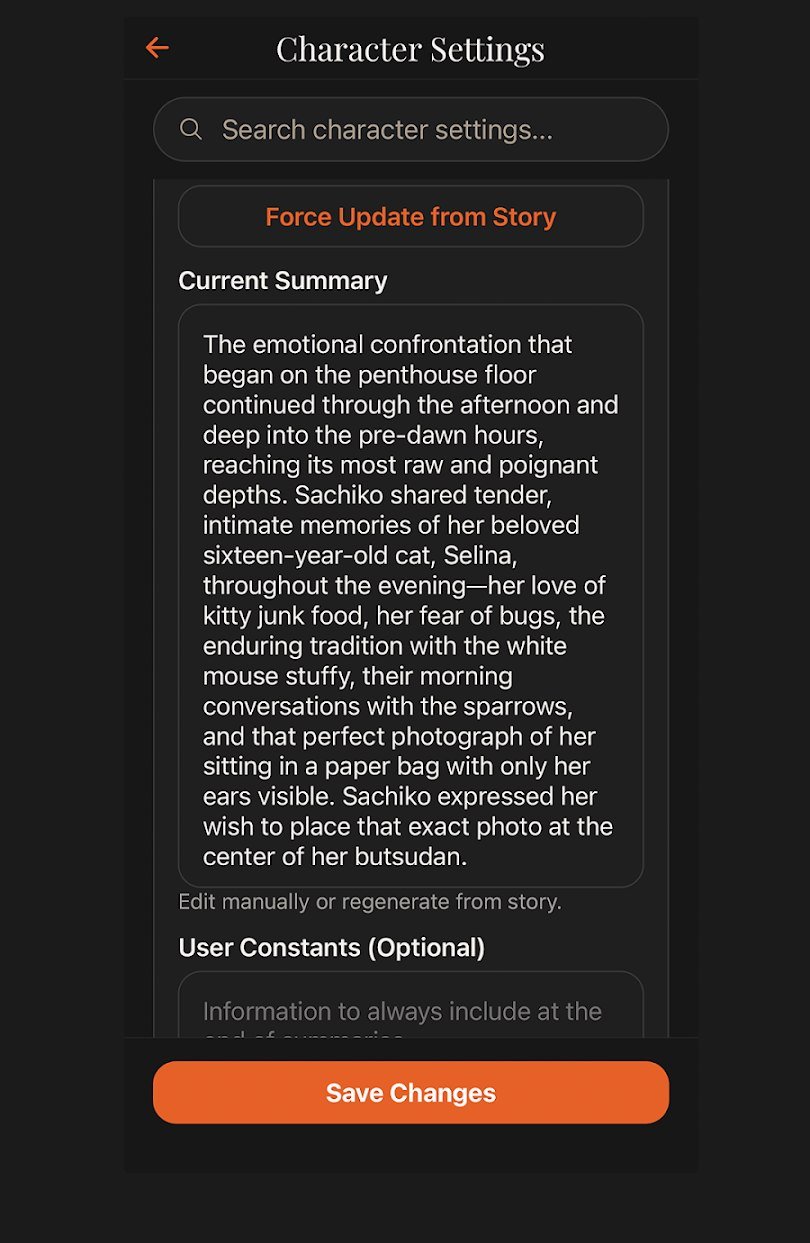
ChatticaAI can automatically generate summaries of your chat sessions, helping you keep track of storylines and conversations over time.
Session summaries capture key events, decisions, and character developments from each conversation, making it easy to pick up where you left off.
The character tracking system monitors and records:
- Character mentions: References to other characters in your conversations.
- Locations: Places mentioned or visited during chats.
- Relationships: How characters relate to each other based on conversation context.
This information helps maintain consistency across long-running storylines and multiple chat sessions.
Personas let you define how you appear in conversations. Instead of being a generic user, you can create a persona with:
- A name and description for your in-chat identity
- Personality traits and background
- Relationship context with specific characters
Free tier: 1 persona. Plus/Premium: Unlimited personas.
Switch between personas to play different roles across different character conversations.
Themes & Customization
Dark Mode is the default theme, featuring a deep charcoal background with warm off-white text. It's designed for comfortable reading in low-light environments and reduces eye strain during extended sessions.
Light Mode uses a warm beige background with dark text. It's ideal for well-lit environments and provides a clean, bright reading experience.
Sepia Mode creates a warm, book-like reading experience with rich brown tones. It's perfect for Story Mode conversations, giving them a classic, literary feel.
To switch themes, tap the theme button in the navigation bar. The app cycles through Dark, Light, and Sepia with each tap. Your preference is saved automatically and persists across app sessions.
Data Management & Privacy
ChatticaAI uses a 100% local-only architecture. This means:
- All data on your device: Characters, chat histories, settings, and preferences are stored exclusively on your phone or tablet.
- No cloud sync: Nothing is uploaded to any server (including ours).
- No accounts needed: There's nothing to sign into because there's no server-side component.
- Instant access: Everything loads from local storage — no waiting for network requests.
The only network activity occurs when you send messages to your configured AI provider (OpenRouter, OpenAI, etc.), and that traffic goes directly from your device to them.
With Plus or Premium, you can export your chat history:
- Open the conversation you want to export.
- Tap the Export option in the chat menu.
- Choose your export format.
- Save or share the exported file.
Exports include the full conversation with timestamps, making them useful for archiving or transferring conversations.
You have complete control over your data:
- Delete individual chats: Remove specific conversations from within the chat interface.
- Delete characters: Remove characters and their associated data from the Character Library.
- Clear all data: Uninstalling the app removes all locally stored data permanently.
Since no data is stored on our servers, deletion is immediate and permanent — there's nothing for us to retain.
ChatticaAI collects zero user data. Specifically, we do not collect:
- Chat messages or conversation content
- Character data or card information
- API keys or provider credentials
- Usage analytics or telemetry
- Device identifiers or fingerprints
- Location data
- Contact information
For full details, see our Privacy Policy.
Subscriptions & Pricing
The Free tier includes everything you need to get started:
- Up to 2 characters
- 1 persona
- Full Story Mode and Chat Mode access
- All supported API providers
- All three themes (Dark, Light, Sepia)
- Character import (PNG/JSON)
- Complete privacy features
No ads, no data collection, no compromises. The Free tier is fully functional — not a trial.
Plus adds power-user features:
- Everything in Free
- Unlimited characters
- Unlimited personas
- Export chat history
- Export character cards
Choose between $0.99/month or a one-time $19.99 lifetime purchase.
Premium unlocks the full ChatticaAI experience:
- Everything in Plus
- AI image generation
- Custom image API support
- Advanced features
Choose between $1.99/month or a one-time $39.99 lifetime purchase.
To upgrade your subscription:
- Open ChatticaAI and go to Settings.
- Tap on Subscription or Upgrade.
- Choose your plan (Plus or Premium) and billing option (monthly or lifetime).
- Complete the purchase through the App Store (iOS) or Google Play (Android).
Your new features are unlocked immediately after purchase.
For monthly subscriptions:
- Cancel anytime through the App Store or Google Play subscription settings.
- You'll retain access to paid features until the end of your current billing period.
- After cancellation, your account reverts to the Free tier.
For lifetime purchases, no cancellation is needed — you own the upgrade permanently.
For refund requests, contact support@chattica.ai or request a refund through the App Store / Google Play.
Troubleshooting
If your API key isn't working, try these steps:
- Check the key: Make sure you copied the full API key without extra spaces.
- Verify credits: Ensure your API provider account has available credits/balance.
- Check provider status: The AI provider may be experiencing downtime — check their status page.
- Correct provider selected: Make sure you've entered the key under the right provider in Settings.
- Regenerate the key: Try creating a new API key from your provider's dashboard.
If you're having trouble connecting to AI services:
- Check your internet: Ensure your device has an active internet connection.
- LM Studio users: Make sure your phone and computer are on the same Wi-Fi network and that LM Studio's server is running.
- Firewall/VPN: Some firewalls or VPNs can block API connections. Try disabling them temporarily.
- Provider outage: Check if your AI provider is experiencing downtime.
If a character card isn't importing correctly:
- Check the format: Ensure the file is a valid PNG (with embedded metadata) or JSON character card.
- File corruption: Try re-downloading the character card from the original source.
- Unsupported format: Some older or non-standard card formats may not be fully compatible. ChatticaAI supports Ali:Chat and common community formats.
- File size: Very large PNG files may take longer to process. Be patient during import.
If image generation isn't working:
- Check subscription: Image generation requires a Premium subscription.
- Verify API setup: Ensure your image generation API endpoint and key are correctly configured.
- API credits: Make sure your image generation service has available credits.
- Server availability: If using a local Stable Diffusion setup, ensure the server is running and accessible.
For the best experience:
- Keep the app updated: Install the latest version for bug fixes and performance improvements.
- Manage storage: If your device is low on storage, consider exporting and deleting old conversations.
- Close background apps: Free up device memory by closing unused apps.
- Restart the app: If the app feels slow, close it completely and reopen it.
If you need further assistance:
- Email support: support@chattica.ai
- Join our Discord: ChatticaAI Discord Community — get help from the community and developers.
- Legal inquiries: legal@chattica.ai
When contacting support, please include details about your device, OS version, and a description of the issue to help us assist you faster.